Stock Changes
This document explains how to manage stock changes in the Jova POS system. This feature allows you to view changes in item quantities in the warehouse.
Stock Changes Flow
The general flow is:
- Access the Inventory → Stock Changes menu.
- Select a product that has experienced stock changes.
- View the stock change details by date and change type.
- You can filter by product or specific category.
- Click Hide Zero Stock to only display products with stock greater than 0.
1. Accessing the Stock Changes Menu
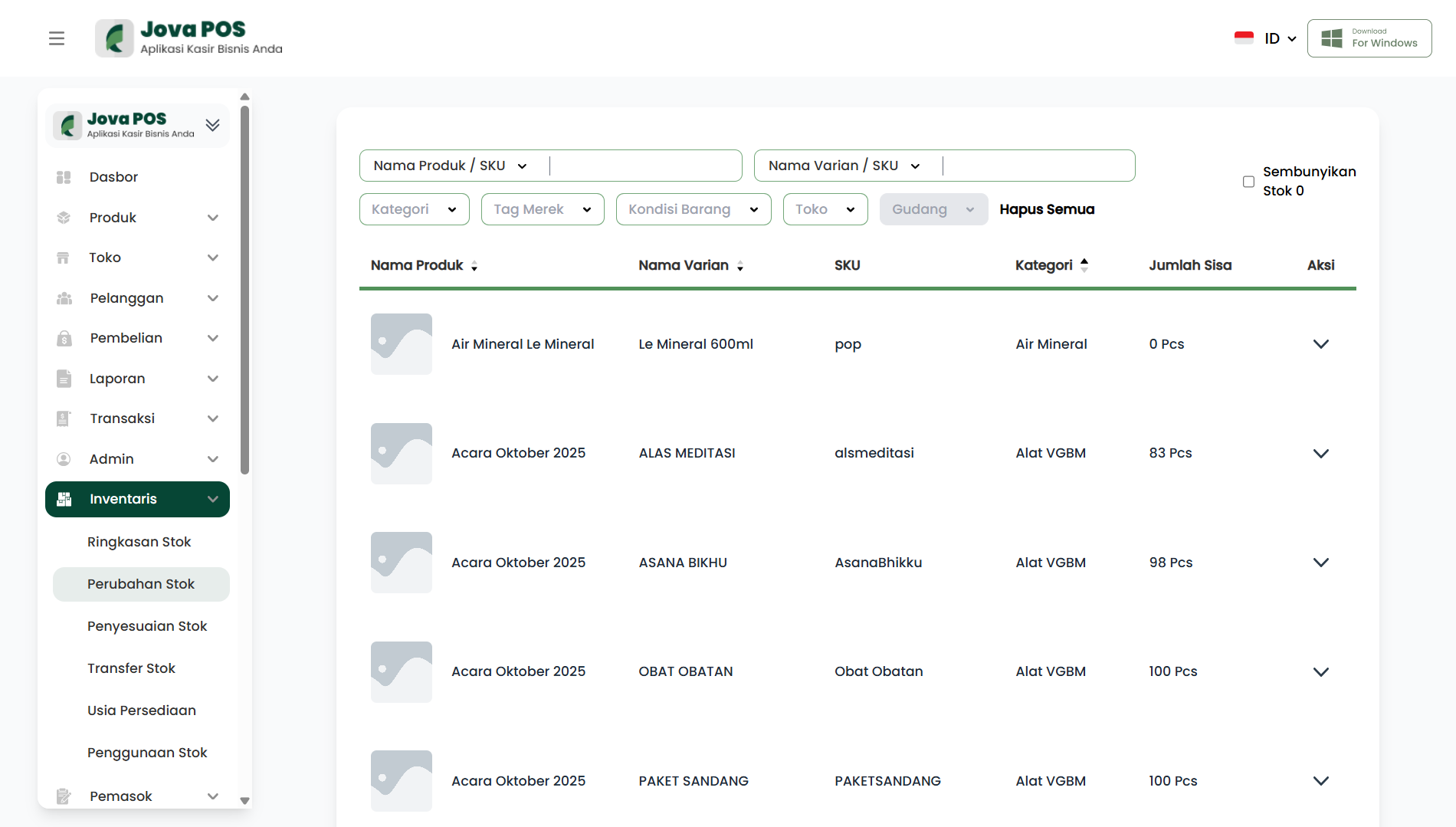
- In the sidebar, click Inventory.
- Select Stock Changes to access the stock changes page.
2. Searching and Filtering Stock Changes
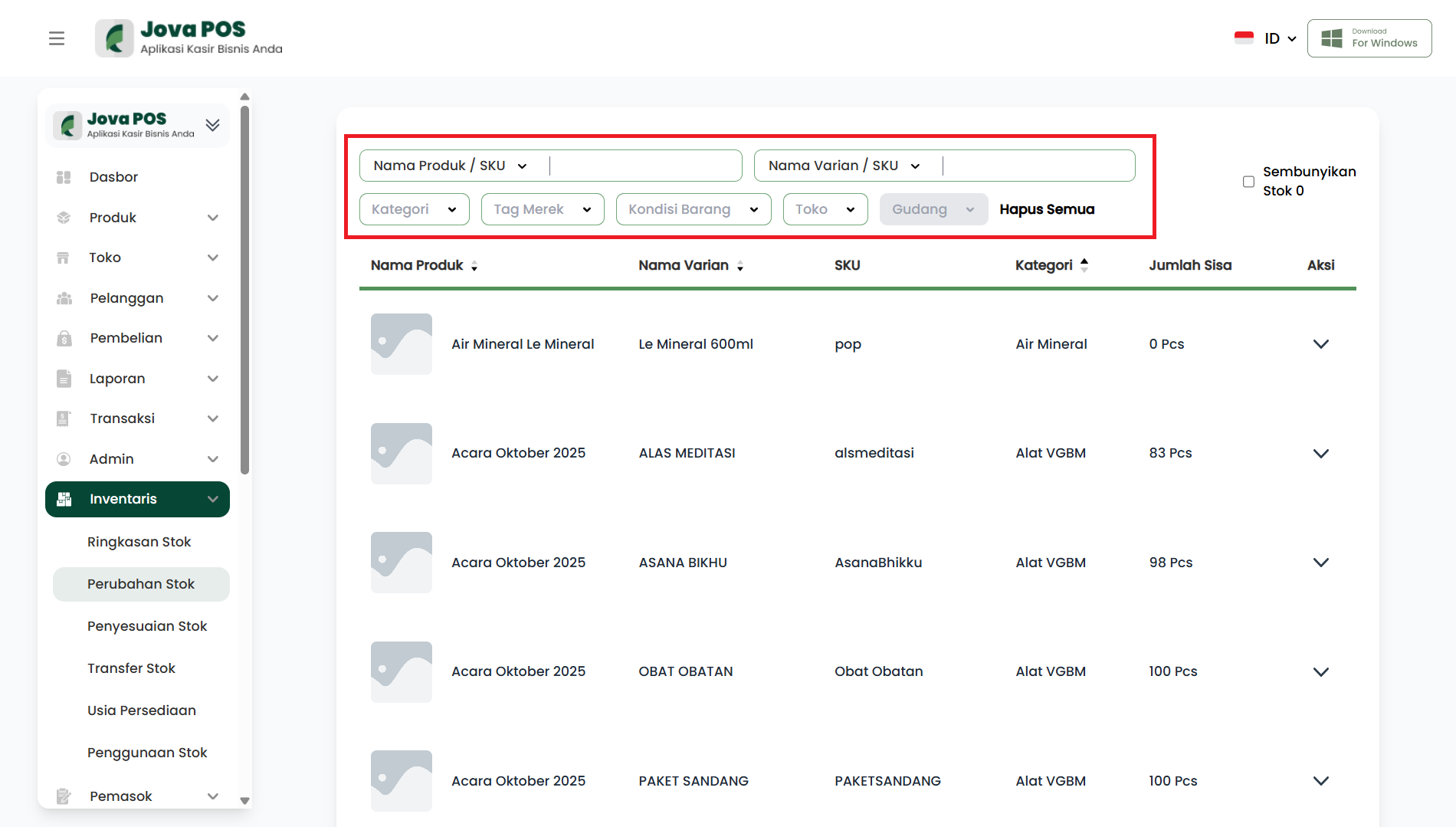
You can use the search feature to find stock changes by Product Name, SKU, or Date.
- Use the Search Column to find a specific product or date.
- You can also select a product Category and filter by Warehouse.
3. Viewing Stock Change Details
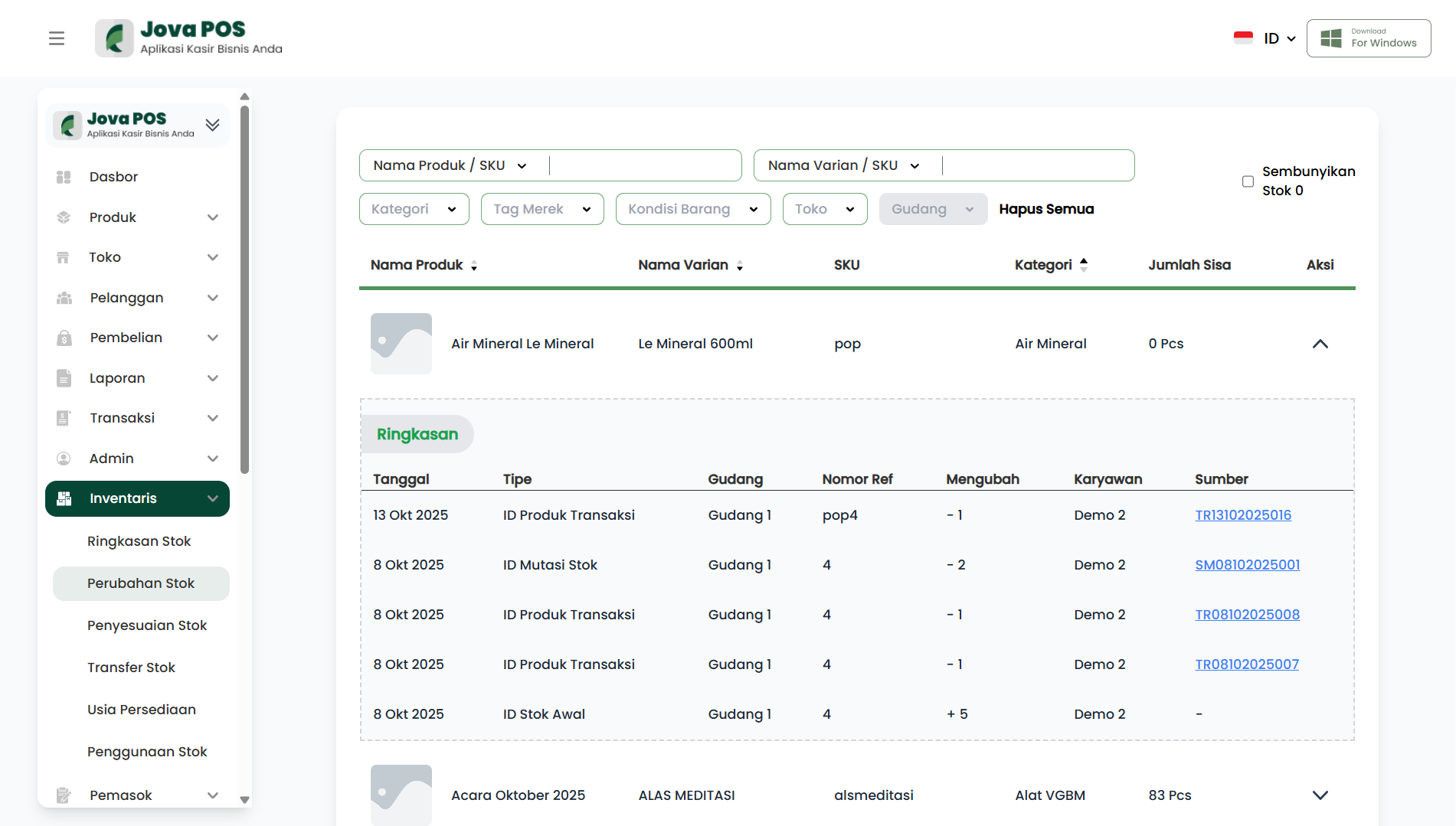
Click the dropdown icon in the Action column next to a product to view stock change details.
- Date: The date of the stock change.
- Type: The type of stock change, e.g. Product Transaction ID, Stock Mutation ID, etc.
- Warehouse: The warehouse location where the stock is stored.
- Ref Number: The reference number pointing to the related transaction or action that caused the stock change. Click this reference number to view the related transaction details.
- Change: The amount of stock added or reduced.
- Employee: The name of the employee who made the stock change.
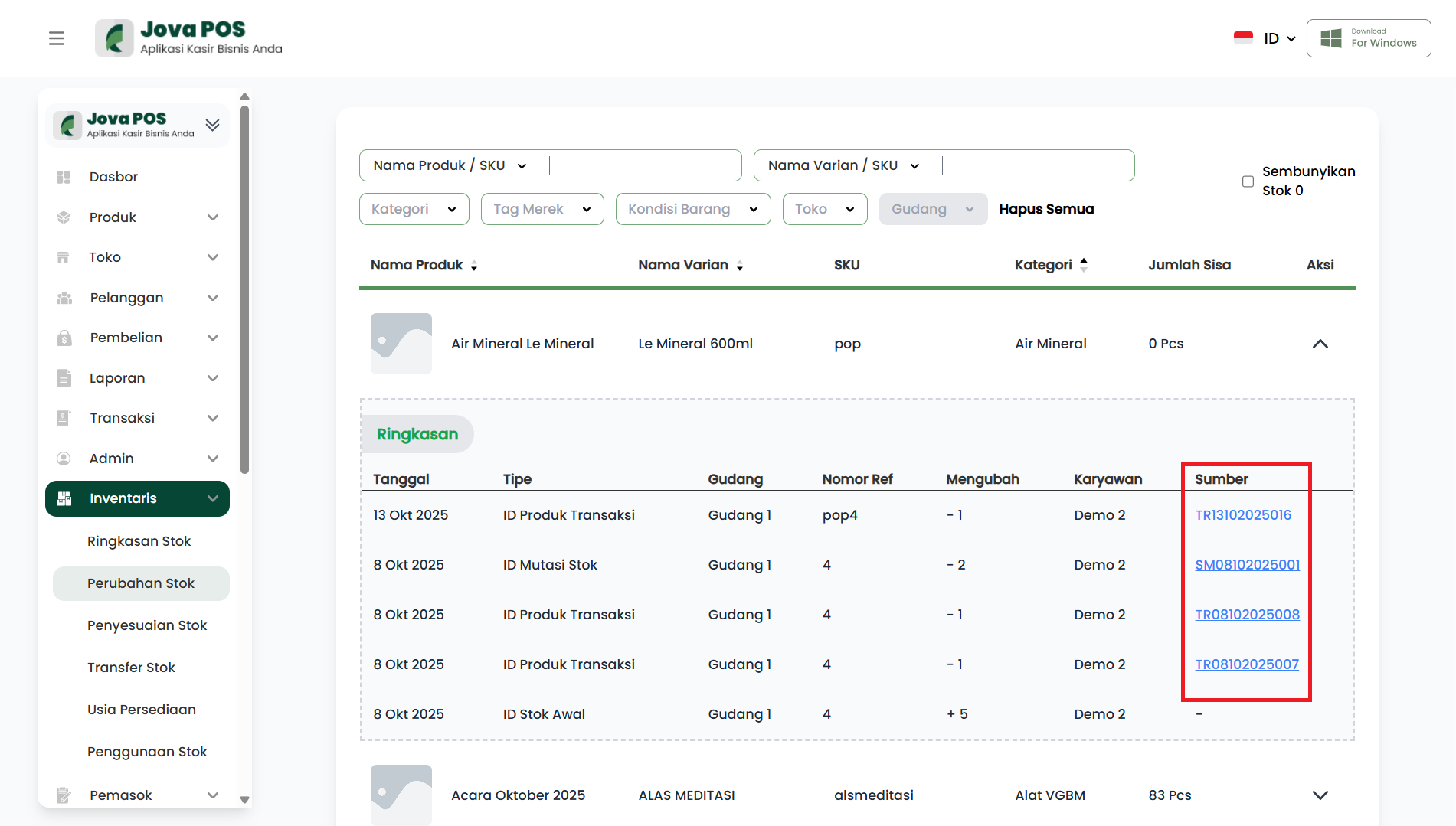
- Source: The stock change reference ID (e.g. Product Transaction ID, Stock Mutation ID).
Each Source printed in bold serves as a hyperlink that will take you to the related page, such as Transaction Information, Customer Information, or Product Information. You can click the link to view more details.
Conclusion
The Stock Changes feature in Jova POS makes it easy to track and manage product stock changes in the warehouse. The search, filtering, and data export processes can be done easily to ensure stock is always well managed.